

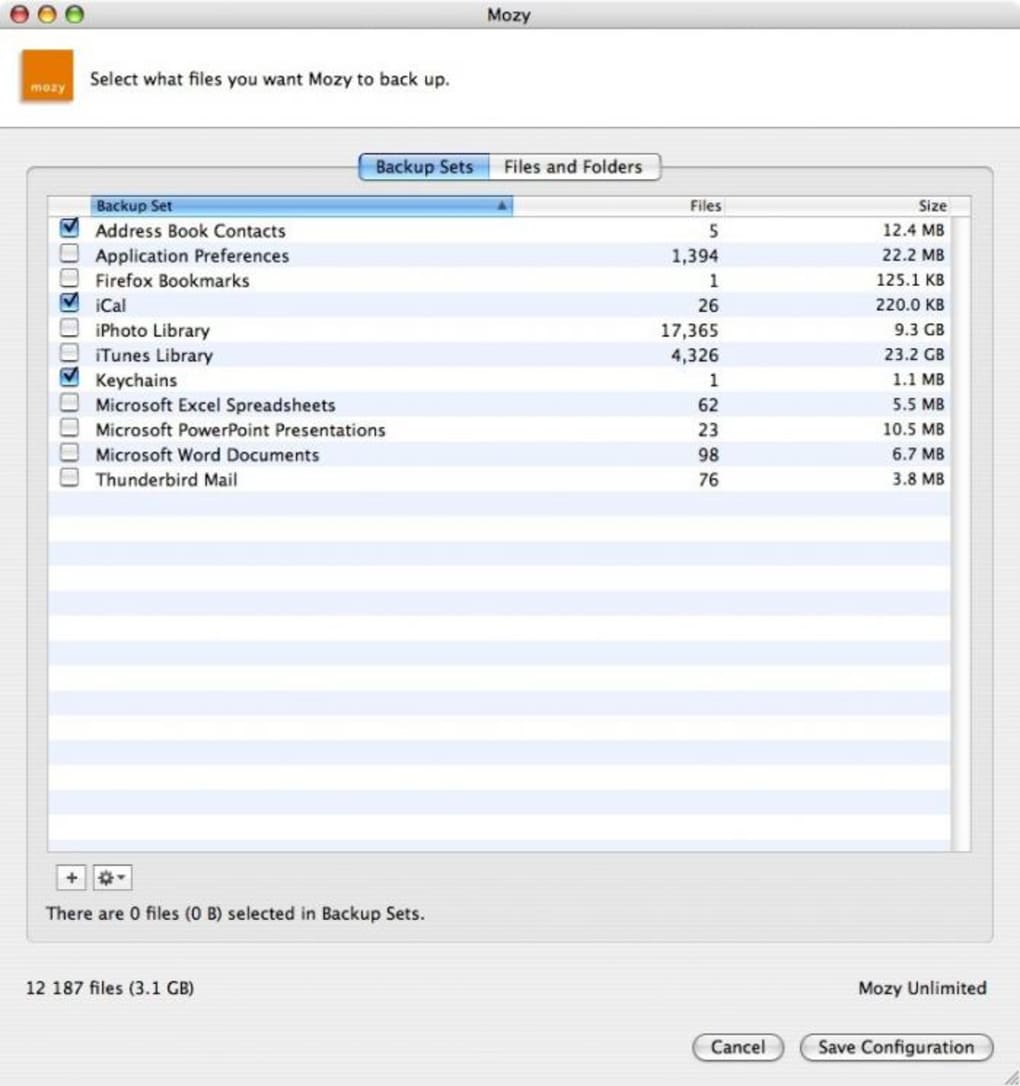
Description
Download Mozy Remote Backup – free secure Mac backup tool
Overview
Mozy Remote Backup is a lightweight, free utility designed specifically for macOS users who need a reliable way to store their most important files in the cloud. Since its first appearance in 2007, the program has attracted over 830 downloads and continues to be a solid choice for individuals and small businesses looking for a no‑cost solution to protect their data. With 2 GB of online storage allocated for each user, Mozy Remote Backup offers a secure vault that encrypts files before they leave your Mac, ensuring that sensitive documents, photos, and configuration files remain private during transit and while at rest.
The application falls under the “Utilities” category with a sub‑category of “Security & Encryption,” highlighting its primary purpose: safeguarding data against accidental loss, hardware failure, or theft. Although the software is not actively updated since May 2007 (version 0.4.1.4), it still runs on older macOS releases and remains compatible with OS X 10.4 through 10.7, making it a viable option for legacy systems that cannot run newer backup solutions. The program’s interface is intentionally simple—no complex wizards or subscription prompts—so users can start protecting files within minutes of installation.
In an era where cloud backup services often charge monthly fees, Mozy Remote Backup stands out for its completely free offering. While 2 GB may not suffice for large media libraries, it is ample for essential documents, configuration backups, and a selection of critical project files. The tool also supports automatic scheduling, allowing the backup process to run in the background without disrupting daily workflows. For anyone who values a straightforward, secure, and cost‑free backup method on a Mac, Mozy Remote Backup remains a compelling choice.
Core Features & Benefits
- 2 GB of free encrypted cloud storage for each user.
- Automatic, scheduled backups that run silently in the background.
- AES‑256 encryption ensures data is secure during upload and at rest.
- Support for macOS versions from OS X 10.4 (Tiger) to 10.7 (Lion).
- Simple, English‑only interface with minimal configuration steps.
- Low system footprint – the installer is under 5 MB and consumes minimal RAM.
- Version 0.4.1.4 includes bug fixes for early‑stage macOS compatibility.
The real value of Mozy Remote Backup lies in its blend of simplicity and security. By providing a modest amount of free storage, the application encourages users to adopt a disciplined backup routine without the friction of subscription models. The built‑in encryption uses industry‑standard AES‑256, which means that even if a malicious actor intercepts the data stream, the information remains unreadable without the user’s decryption key. This level of protection is typically reserved for premium services, yet Mozy delivers it at no cost.
Scheduling is another highlight. Users can define daily, weekly, or monthly backup windows, and the software will automatically compress and encrypt files before sending them to Mozy’s remote servers. Because the process runs in the background, it does not interfere with other applications, making it ideal for developers, designers, or anyone who needs an uninterrupted workflow. Additionally, the program’s modest resource usage ensures that older Macs—often the target audience for free utilities—remain responsive while backups occur.
While the feature set is intentionally lean, each component is crafted to address a specific need: secure storage, automated operation, and broad compatibility with legacy macOS versions. For users who do not require advanced features like versioning, multi‑device sync, or massive storage quotas, Mozy Remote Backup provides an elegant solution that “just works.”
Installation, Usage & Compatibility
Step‑by‑Step Installation Guide
- Visit the official Mozy website or a trusted software repository and download the MozyRemoteBackup‑0.4.1.4.dmg file.
- Open the downloaded DMG and drag the Mozy Remote Backup icon to your Applications folder.
- Launch the application from Applications; macOS may prompt you to confirm that you want to open an app from an unidentified developer. Click “Open” to proceed.
- When the welcome screen appears, sign up for a free Mozy account using a valid email address and create a strong password. This account will be used to access your 2 GB of cloud storage.
- After registration, you’ll be asked to select the folders you wish to back up. Choose your Documents, Desktop, or any custom directories that contain critical data.
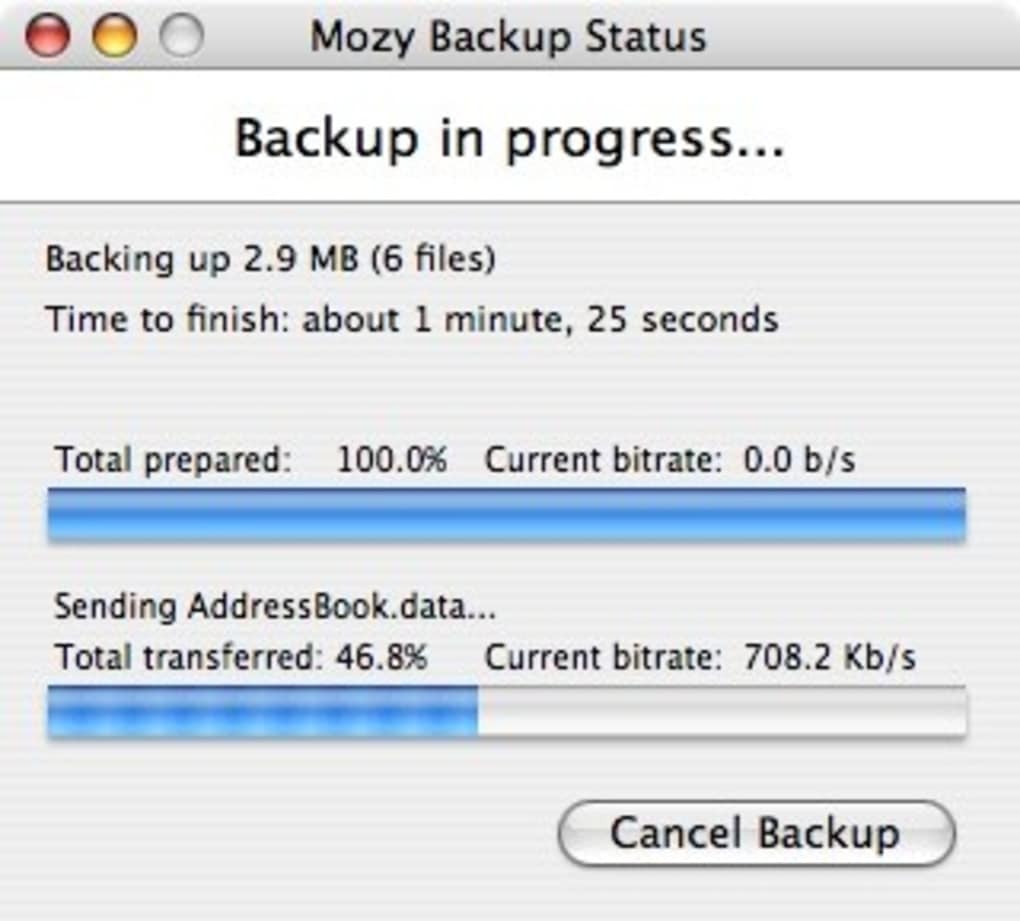
- Configure the backup schedule (daily at 2 AM is a common default) and click “Start Backup.” The first sync may take several minutes depending on the amount of data.
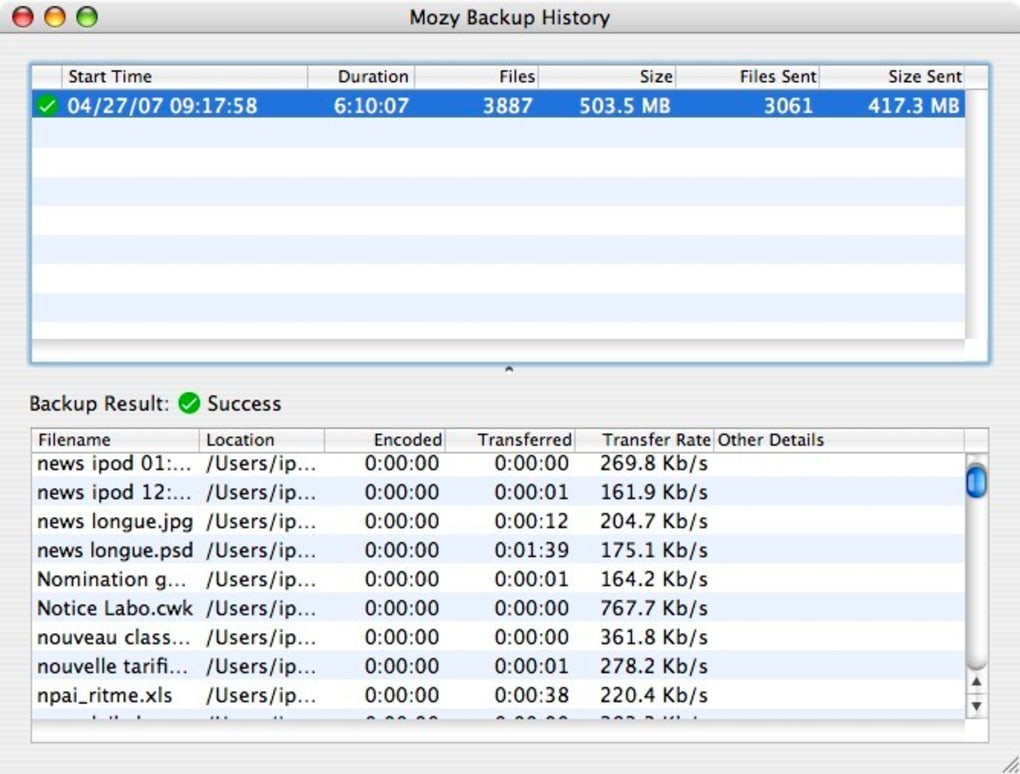
Once installation is complete, Mozy Remote Backup places a small icon in the macOS menu bar. Clicking the icon provides quick access to status reports, recent backup logs, and settings. The “Preferences” pane allows you to adjust bandwidth limits, exclude specific file types, or change the encryption password if you wish to rotate keys periodically.
Operating System Compatibility
Mozy Remote Backup is built for macOS and supports the following versions:
- Mac OS X 10.4 (Tiger)
- Mac OS X 10.5 (Leopard)
- Mac OS X 10.6 (Snow Leopard)
- Mac OS X 10.7 (Lion)
Because the software has not been updated since 2007, it may not run on macOS versions newer than Lion without compatibility tweaks (e.g., running in a legacy compatibility mode). However, for users maintaining older hardware or those who purposefully keep a machine on a legacy OS for stability, Mozy Remote Backup remains fully functional.
Using the Application Effectively
After the initial backup completes, Mozy operates silently, monitoring the selected folders for changes. When a new file is added or an existing file is modified, the program encrypts the update and pushes it to the cloud during the next scheduled window. Users can view detailed logs by selecting “View Log” from the menu bar icon, which shows timestamps, file paths, and any error messages. If a backup fails due to network issues, Mozy will automatically retry during the next cycle.
For added security, consider enabling two‑factor authentication on your Mozy account via the web portal. This adds a layer of protection beyond the password, ensuring that even if credentials are compromised, unauthorized access to your backup vault remains blocked.
Pros, Cons, FAQ & Conclusion
Pros
- Completely free 2 GB cloud storage for Mac users.
- Strong AES‑256 encryption protects data in transit and at rest.
- Automatic scheduling eliminates the need for manual backups.
- Low system resource usage, ideal for older Macs.
- Simple English‑only interface reduces learning curve.
Cons
- No longer receiving updates; may face compatibility issues on macOS > Lion.
- Limited to 2 GB storage, insufficient for large media collections.
- Lacks advanced features such as file versioning, multi‑device sync, or selective restore.
- English‑only language support restricts non‑English speaking users.
- Requires manual account creation; no single‑sign‑on integration.
Frequently Asked Questions
Is Mozy Remote Backup still safe to use despite being unmaintained?
Yes, the core encryption algorithm (AES‑256) remains secure, and the servers are still operational. However, users should be aware that compatibility with newer macOS versions is not guaranteed, and any newly discovered vulnerabilities will not be patched.
Can I increase the storage limit beyond 2 GB?
Mozy’s free tier is capped at 2 GB. To obtain more space, you would need to upgrade to a paid Mozy plan, but the free version remains fully functional for modest backup needs.
What types of files are excluded by default?
System files, caches, and temporary folders are automatically excluded to avoid unnecessary uploads. Users can manually add additional exclusions in the Preferences panel.
Does Mozy Remote Backup support versioning of backed‑up files?
No, the free version does not retain multiple versions of a file. Each backup overwrites the previous copy, so it’s recommended to keep a local copy of critical documents.
How can I restore files if my Mac crashes?
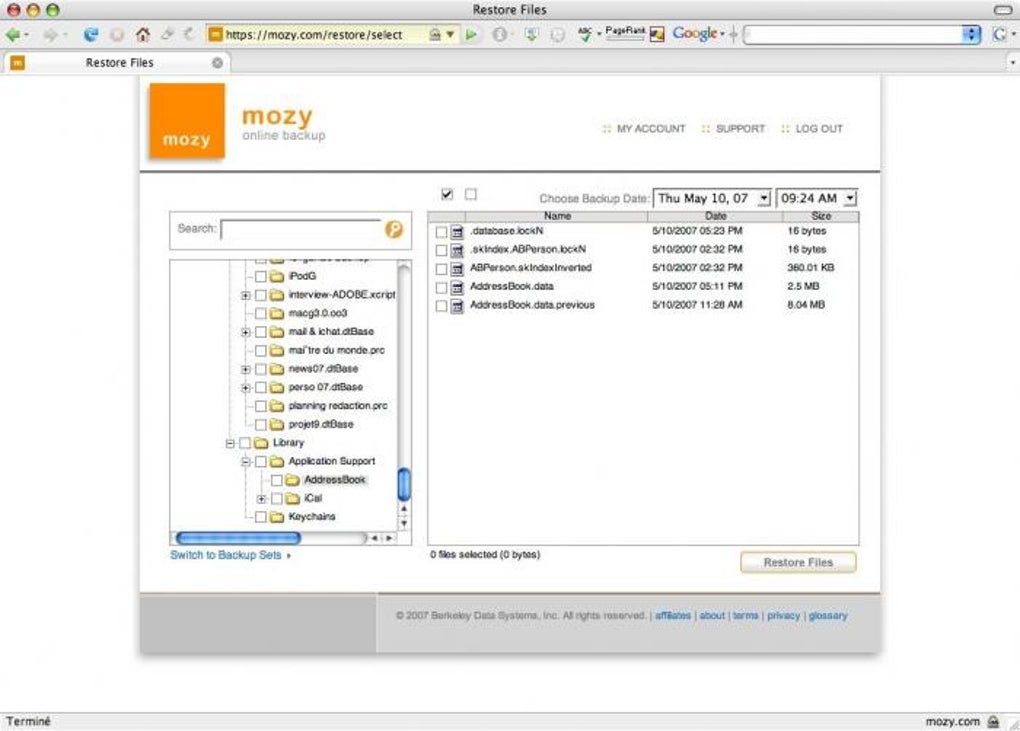
After reinstalling macOS, download and install Mozy Remote Backup on a clean system, log in with your account, and use the “Restore” function to select files or folders from your cloud vault. The process decrypts the data locally on your Mac.
Conclusion & Call to Action
Mozy Remote Backup delivers exactly what its name promises: a remote, secure backup solution that works quietly in the background for Mac users who need a simple, cost‑free way to protect their most important files. While the lack of recent updates means it’s best suited for legacy macOS environments, its strong encryption, automatic scheduling, and zero‑price tag make it an attractive option for students, freelancers, and small teams that operate on older hardware.
If you’re looking for a straightforward backup tool without subscription headaches, download Mozy Remote Backup today, set up your free 2 GB vault, and gain peace of mind knowing your data is safely stored off‑site. For larger storage needs or modern macOS compatibility, consider pairing Mozy with a contemporary cloud service, but keep Mozy as a reliable fallback for essential documents.
Ready to secure your Mac? Click the download button below, follow the quick installation steps, and start protecting your files in minutes.
Overall Rating: 4/5 – solid free backup for legacy macOS.
Guides & Tutorials for Mozy Remote Backup
How to install Mozy Remote Backup
- Click the Preview / Download button above.
- Once redirected, accept the terms and click Install.
- Wait for the Mozy Remote Backup download to finish on your device.
How to use Mozy Remote Backup
This software is primarily used for its core features described above. Open the app after installation to explore its capabilities.
User Reviews for Mozy Remote Backup 0
No reviews found





.webp)